Instantly know as soon as orders are placed whether the inventory to fulfill those orders exists in your inventory and start printing packing slips.
Note: If the **Pick Ticket** doesn't appear to print, check your **popup blocking settings**
- Select Inventory > Pick Pack
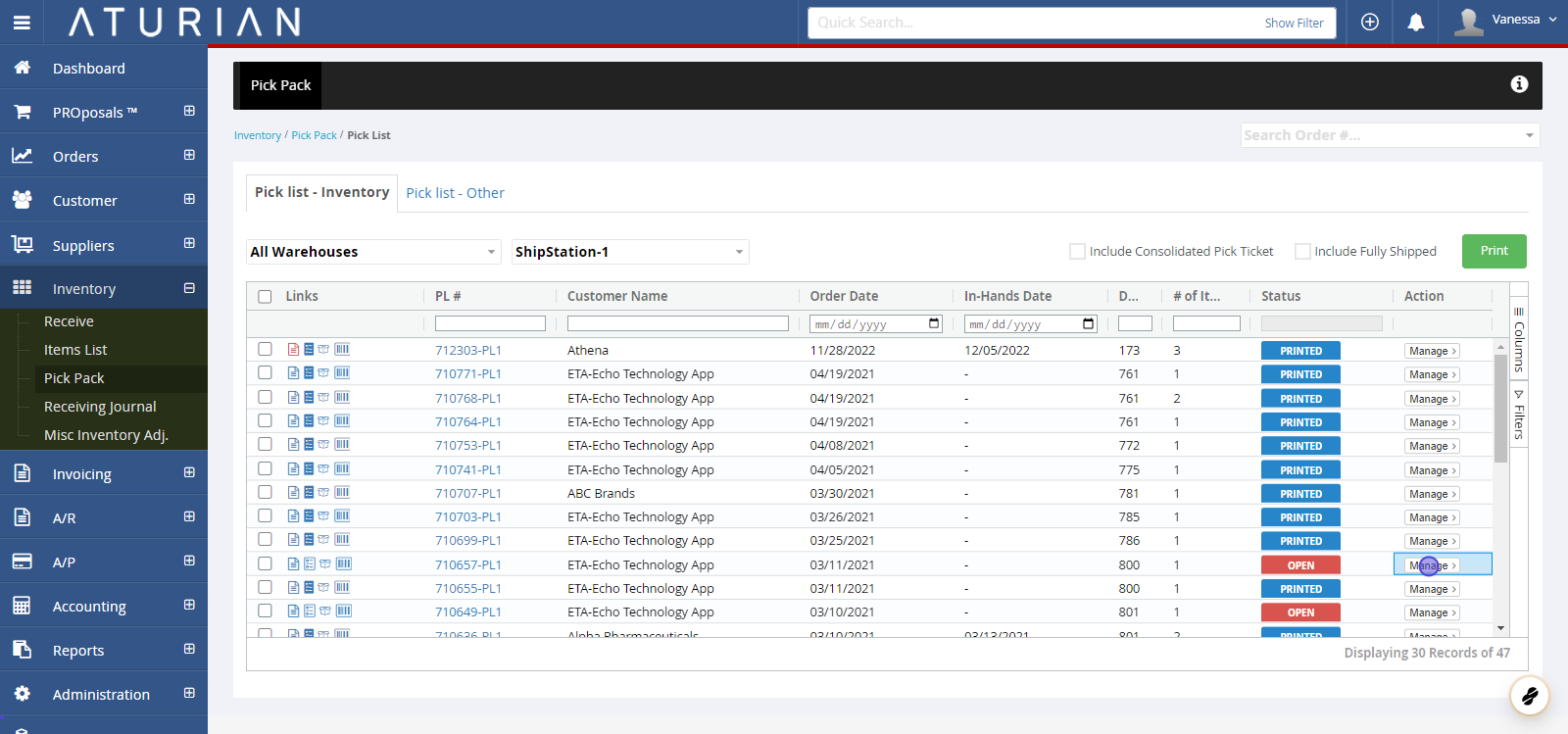
- Select the order to pick pack
Search for the order in the **upper right search field** or find the order in the list. Then, click on "**Manage**" and "**Print Pick Ticket**".

💡 Tip!
A **separate window will appear** with your pick ticket along with the **prompt to print** this screen/ticket.
- Fill Packing Slip
To fill the packing slip, click "**Manage**" again and then **Fill Packing Slip** in the drop down menu.
- Enter shipping information
Enter the **tracking number**, **carrier information**, and **freight cost**.


💡 Best Practice
Entering the **freight cost** on the pick ticket is not a requirement. However, by doing so, you will **auto-populate** the **net freight** and **billing freight**, which includes up charge to customer, on the customer invoice.
- Submit & Print Packing Slip
If the entire committed quantity was filled, you can click "**Copy committed Qty**". If not, then **type in the quantity picked** and select either "**Submit**" or "**Submit & Print Packing Slip**".
