- Go to Aturian / Demo
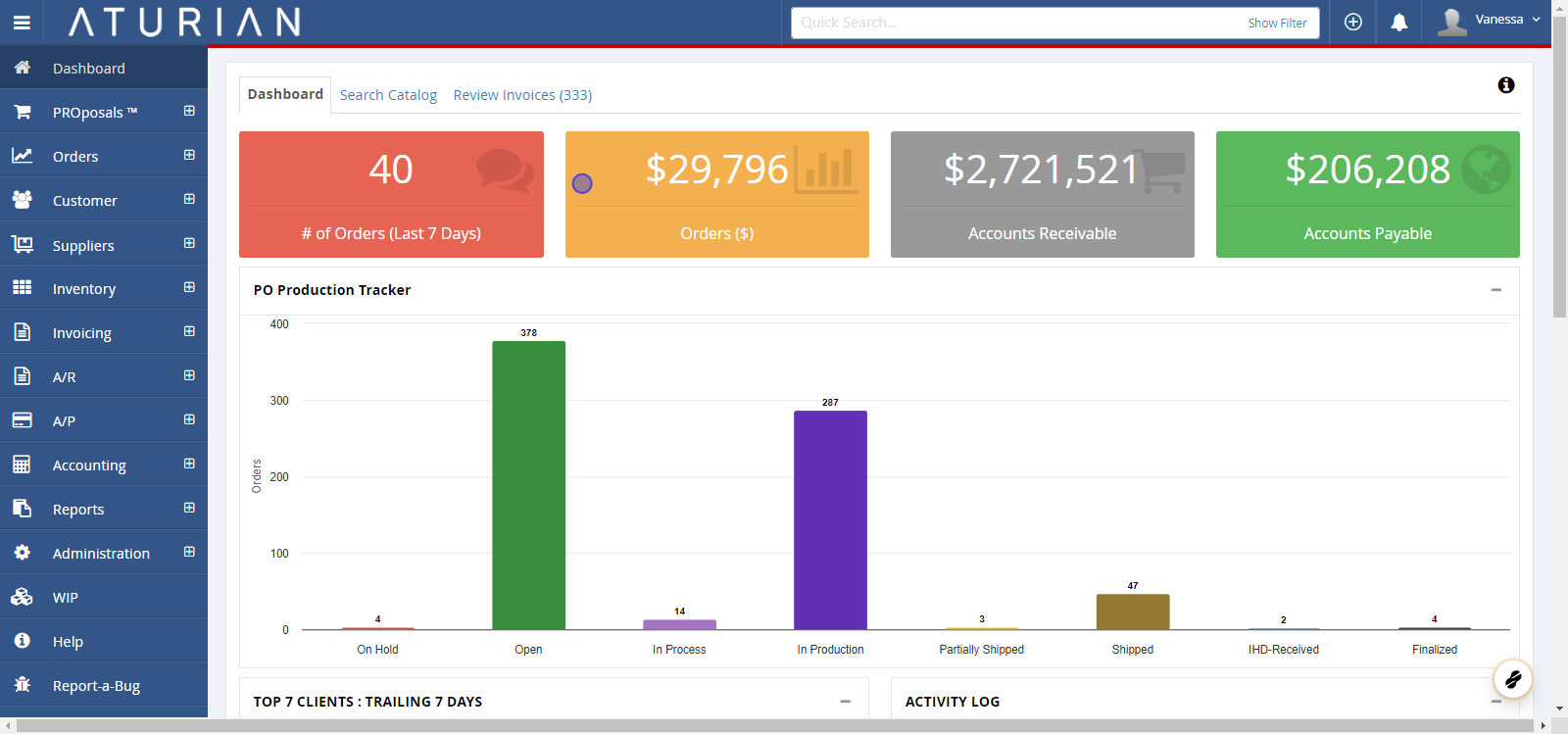
- Click on Reports
- Click on Misc
In the main navigation menu, select the **Reports module** and click on "**Misc**."
- Report: CJD-1005 Reprint Saved Journals
Print saved journal data for a given duration and download as a PDF.
- Reprint Saved Journals
Select desired criteria. Then, click "**Download PDF**".
- Report: ST-1005 Sales Tax Report
Provides sales tax details for a given book period or a given range of book periods with option to include invoice addresses.
- Sales Tax Report
Select desired criteria. Then, click "**Submit**". You can download the report an excel spreadsheet.
- Report: ST-1010 Sales Tax Report by Item
Provides sales tax details by item for a given book period or a given range of book with an option to include unpaid invoices and invoice addresses.
- Sales Tax Report by Item
Select desired criteria. Then, click "**Submit**". You can download the report as an excel spreadsheet.
- Report: RR-2020 Royalty Report
Pull a report for royalties owed to customers with the option to drill down by customer, item, and date range.
- Royalty Report
Select desired criteria. Then, click "**Submit**". You can download the report as an excel spreadsheet.
How To Navigate Miscellaneous Reports
- Updated


